Converting Photos to ASCII Art — a Complete Guide
ASCII art maps the brightness values of a photo to text characters — dense characters for dark areas, sparse ones for light areas. The result is an image made entirely from letters and symbols. Here's how to do it with Ditther.
What is ASCII art?
ASCII (American Standard Code for Information Interchange) is a character encoding standard from the 1960s. Early computer displays could only show text characters, so artists arranged them into images — a grid of characters, each chosen for its visual density, creates the illusion of light and shadow.
Modern ASCII art is more expressive than the original constraints allow. Ditther supports Latin, Japanese Katakana, symbols, numbers, and custom character sets you define yourself.
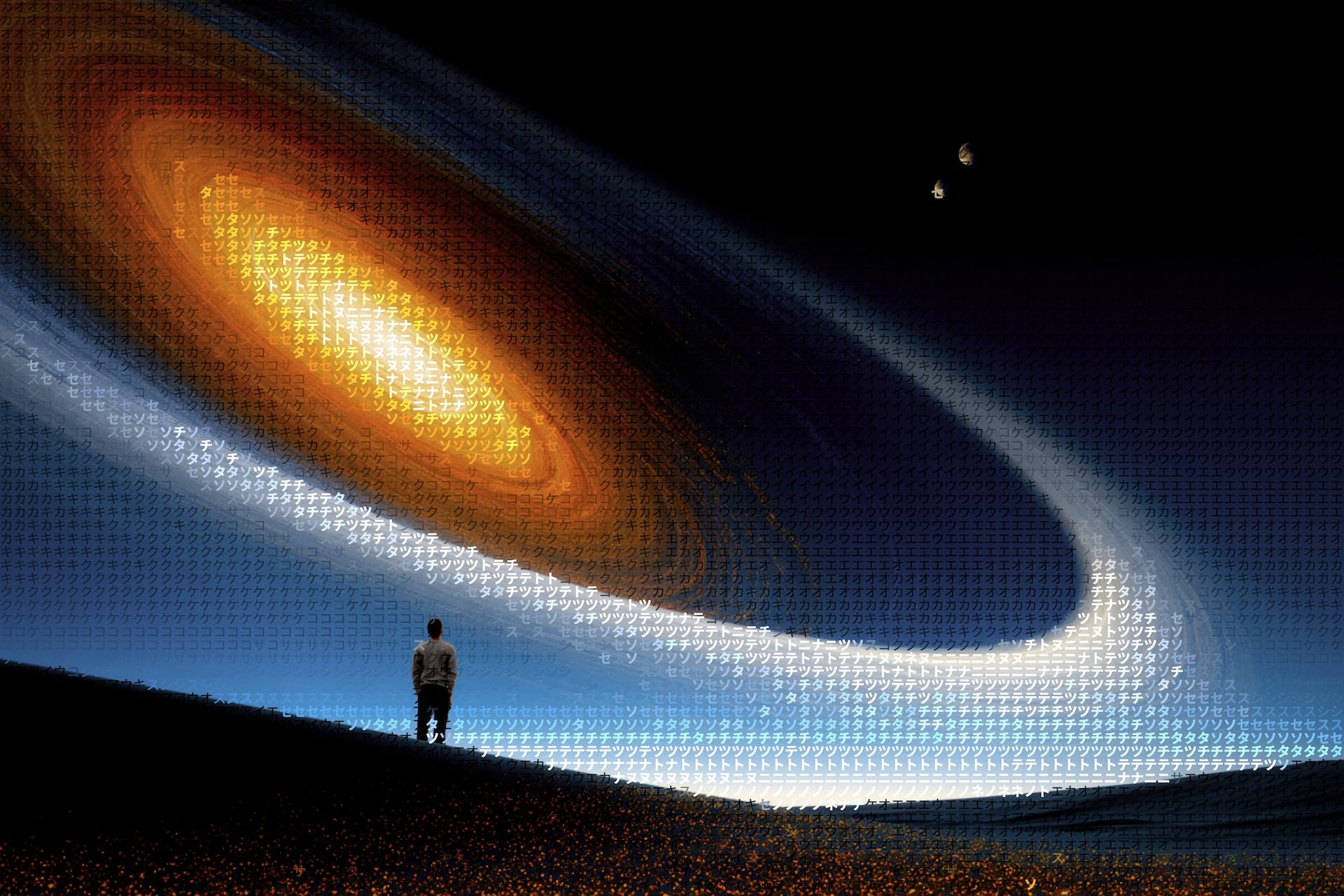
Japanese Katakana characters forming a space scene — each character maps to a brightness value in the original image.
Character sets in Ditther
Classic ASCII
@#%*+=-.
Dense to sparse. The original character art palette. High contrast, familiar aesthetic.
Katakana
タチツテト
Japanese phonetic characters. Produces a cyberpunk, Matrix-coded look.
Symbols
△ × ○ ◇ ✕
Geometric shapes replacing characters. More graphic, less typographic.
Numbers
1 2 3 4 5 6
Numeric characters only. Creates a data-readout or cryptographic feel.
Binary
0 1 0 1 1 0
Just zeros and ones. Minimal, high-concept, technically striking.
Custom
Any chars
Type your own character set — brand initials, a word, any mix.
How to convert a photo to ASCII art in Ditther
Open Ditther
Go to app.ditther.com. No account needed.
Upload your image
Drag your photo onto the canvas or click the + button. Use a photo with clear tonal contrast for the best result.
Select ASCII / Characters
In the right panel under Pixel Effects, click ASCII. The effect applies immediately.
Choose your character set
Use the Style dropdown to switch between Classic ASCII, Katakana, Symbols, Numbers, and more.
Adjust Size and Density
Size controls how large each character is rendered. Smaller size = finer detail. Density controls how close they pack.
Add a cinematic filter
ASCII looks particularly strong with colour grading. Try the Neon, Terminal, or Darkroom Looks presets.
Export
Hit Export in the top nav. Pro users get 4K resolution and no watermark.
Tips for better ASCII art results
Use images with strong tonal contrast
ASCII art depends on brightness differences to form recognisable shapes. Use images with clear highlights and shadows — portraits with side lighting, landscapes with bright sky and dark foreground work particularly well.
Smaller character size reveals more detail
Start small (8–12) and increase until you find the balance you want. At small sizes fine detail emerges; at large sizes the image becomes abstract but characters are clearly readable.
Combine with a background for depth
The ASCII effect renders characters on a transparent background — the background layer shows through the gaps. A warm image behind the characters gives a glowing, otherworldly effect.
Best combination
For a cinematic ASCII look: upload any dramatic landscape, select Katakana at Size 14, add the Space background pack, and apply the Terminal Looks preset.
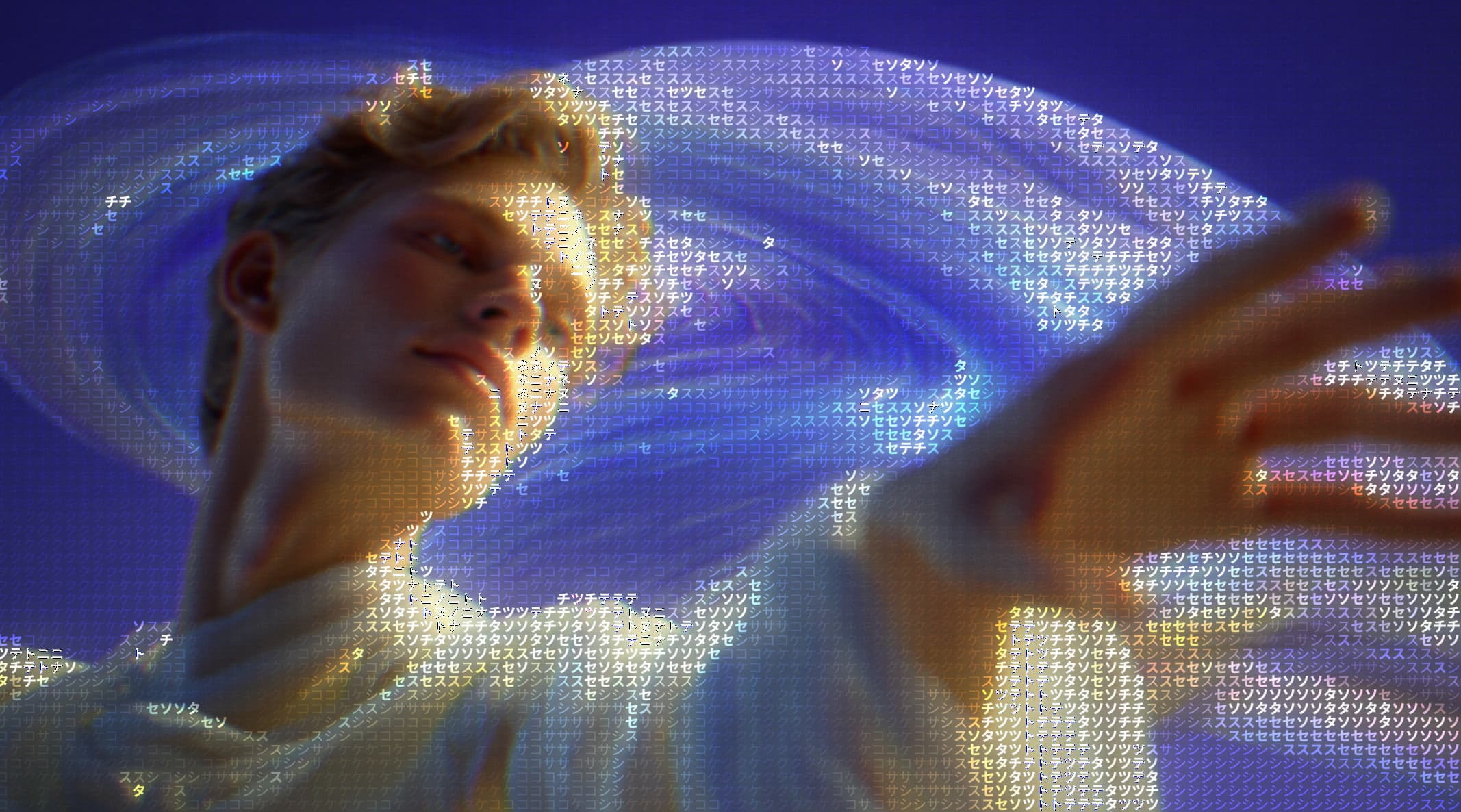
Katakana characters on flowing abstract rings — the character grid follows the luminosity of the underlying image exactly.
Common questions
Can I use my own characters?
Yes. In Ditther's ASCII settings, type any characters into the custom field. Anything you enter gets used as the character palette, ordered from densest to sparsest automatically.
Does the effect work on videos?
Pro users can import video and apply effects including ASCII in real time, then export as MP4.